


Apple
GUIDE: Most Common Problems With Hackint0sh’s

Everyone Here is Guide Most Common Problem With Hackint0sh’s ,when a Noob or Newbie wants to Install OSX and faced Problems ,creates a new thread and waiting for reply ,this will help you in getting Solutions.
Preface:
So I’ve built a few hackintoshes now to the point where I’ve a good idea what I’m doing.The problem with it being that I haven’t found a well explained start to finish guide of how to do it without a lot of Googling and combining numerous different guides so my idea is to collate everything into one place for beginners to hopefully understand get better systems. although I’m rewriting most of it if anyone wants credit adding to something I’ve accidentally stolen from them just PM me.If any one has any suggestions on how to improve this guide PM me or mention it on the forum thread.
KNOWN ISSUES WITH HACKINTOSH
- Stuck at Apple logo fix
- Installation Issue: Hanging at 1 Minute Left
- Kernel Panic Issue :AppleIntelCPUPowerManagement
- KerneL Panic Issue :AppleIntelSNBGraphicsFB
- KerneL Panic Issue :AppleIntelHDGraphics
- boot0:Error
- Stuck at :Missing Bluetooth Controller Transport
- stuck at [IOBluetoothHCIController][start] — completed
- Infinite restart loop
- iMessage login
- Stuck at [PCI Configuration Begin]
- com.apple.GeForce; com.apple.NVDAResman Kernel Panic Issue
- Lan-Freeze issue
- Making Mac partition bootable
- PS2 Mouse & Keyboard issue
- Mach Reboot
- Crashing When Opening: About This Computer
- USB Devices not working
- How to: Install Error loop at account creation
- Stuck “Waiting for root device”
- P-State Stepper Error 18 at step 2 on CPU X Possible Fix
- FakeSMC: [Fatal] failed to initialize SMC device
Stuck at Apple logo fix
Issue:Stuck at Apple logo fix
Solution:If you have just installed OS X for the first time and your Hackintosh is getting stuck at the white screen with the Apple logo and the spinner is spinning endlessly try using -v -x boot flags.
You should normally boot with safe mode the first time around along with verbose mode to see the last line of code just in case it gets stuck.It’s always best practice to use integrated graphics, especially with the new CPU’s, to minimize problems.
Installation Issue: Hanging at 1 Minute Left
Issue: Installer hangs at about “1 minute left”
Solution: Once the installer hangs at 1 min left, Reboot back into the DVD installation in the same manor as before. Do NOT format the drive, Relabel or enter the disk utility at all. Continue through the installation, this time it will finish installing successfully, and quicker as it will only install the missing files.
KernelPanicIssue:AppleIntelCPUPowerManagement
Issue:Kernel Panic Issue :AppleIntelCPUPowerManagement
Solution:If You Got Kernel Panic on/about AppleIntelCPUPowerManagement make you have NullCPUPowerManagement.Kext Is Installed .Then use Following Commands :
Step 1: Boot in Single User mode by interrupting the Chameleon bootstrap and enter -s boot flag, having highlighted the targeted OS X partition to boot from. Step 2: Shortly afterwards, you will be given the possibility to enter your own commands. You need write access to the partition, so we start with these commands: fsck -fy mount -uw / Step 3: Go to the directory where you installed the kext. cd /System/Library/Extensions/ or cd /Extra/Extensions Step 4: Remove the kext you just installed. rm -rf example.kext Step 5: Remove caches. rm -rf /System/Library/Caches/com.apple.kext.caches Step 6: Clear nvram. nvram -d boot-args Step 7: shutdown pc by following command: shutdown -r now
The system will automatically reboot upon myFix completion and it should normally work again!
KerneL Panic Issue :AppleIntelSNBGraphicsFB
Issue:KerneL Panic Issue :AppleIntelSNBGraphicsFB
Solution:If You got Kernel Panic or Kernel Extensions Backtraces thats due to your IntelHD Graphics so you will need to delete those Kexts use Above Commands:
Solution:2:You Can do a fresh Install of Niresh Mac OSX When installing make sure you have Selected kext in Graphisc/backup/move graphics extensions.it will boot fine after getting working OSX you can install or Enable your Graphics
KerneL Panic Issue :AppleIntelHDGraphics
Issue:]KerneL Panic Issue :AppleIntelHDGraphics
Solution:Similar to Issue:KerneL Panic Issue :AppleIntelSNBGraphicsFB
boot0:Error
Issue:boot0 error
Solution:Most of time you have not installed a Bootloader or Your bootloader is messed with windows/linux bootloader ,install a bootloader will fix your problem always install latest Chameleon Bootloader
Solution:2:Download and install Chameleon Wizard ,Update it to the latest version if prompted.Click on the Install tab at the top.See Screenshot: Then based on your current setup choose the appropriate install method. I have OS X on a standalone drive and Windows on it’s own drive so my install method would be Boot0md. They are pretty self explanatory. Make sure the correct Target partition is selected and then click the install button. Now once you restart you should no longer see the previous boot0 errors.
Stuck:MissingBluetooth Controller Transport
Issue:Stuck at:Missing Bluetooth Controller Transport
Solution:you will need to remove the AppleIntelHD* and AppleIntelF* kexts from the installation on the hard drive ,You can do this from single user mode (-s)
Boot -s. When you see the prompt “root:”, then:
Type:  mount -uw /
Type:  cd /System/Library/Extensions
Type:  mkdir intel_back
Type:  mv AppleIntelHD* AppleIntelF* intel_back/
Type:  touch ../Extensions
Reboot -v
Stuck:[IOBluetoothHCIController[start]completed
Issue:stuck at [IOBluetoothHCIController][start] — completed
Solution:If you have a CPU that does not end in a K, aka unlocked versions, then check your BIOS and look for something called Vt-d and Disable it. This is known to cause issues with OS X while providing no benefit to OS X.
Another issue might be if you are using a VGA cable for your monitor. It’s known to not work unless you do some kext editing, so if possible use HDMI or DVI.As always, I’ve found it best to use IGFX whenever possible
Infinite restart loop
Issue: Infinite restart loop
Solution:This is super frustrating isn’t it? Darwin will load to a certain point, and then just instantly restart. You can’t tell what caused the restart because it happens so fast.
Chances are this was a kernel panic, and your bootloader is set to instantly restart on panic. To solve this you should ditch your bootloader and install a new one. Which one you choose is dependant on your version of OSX, and your hardware.
iMessage login
Issue:iMessage login
Solution:Open Finder, and go to /Extra in your main hard drive. Inside this “Extra” folder, create a folder named “Modules”. If you already have a folder named “Modules”, then just open the currently existing folder. Then, download FileNVRAM.dylib.
Stuck at [PCI Configuration Begin]
Issue:Stuck at [PCI Configuration Begin]
Solution:If you find your Hackintosh getting stuck at [PCI Configuration Begin] you should be able to fix this using thenpci=0x3000 boot flag for Mountain Lion. If you are running Lion you would use the npci=0x2000 boot flag.
com.apple.GeForce; com.apple.NVDAResman Kernel Panic Issue
Issue: System stops on Kernel Panic during boot.
Solution:This is caused by the GeForce Kexts that are installed by default. The issue is resolved by removing the GeForce kexts at boot, and it can be done as followed:
boot with -s
mount -uw /
rm -rf /System/Library/Extensions/GeForce.kext
rm -rf /System/Library/Extensions/Ge*.kext
rm -rf /System/Library/Extensions/NV*kext
exit
Lan-Freeze issue
This is well known and should be fixed in Release V.2.
For now you can use the cpus=1 option at boot load, or permanently put it in the bootloader:
sudo nano /Library/Preferences/SystemConfiguration/com.apple.Boot.plist
And replace the current string with this one:
<key>Kernel Flags</key>
<string>-v -legacy cpus=1</string>
If your board has got 2 LAN Ports, then do not use the nForce one.
Install the proper drivers for your second Port, for example Marvell Yukon, and use it instead of nForce LAN. Also delete forcedeth.kext after you installed the drivers.
This will fix the Problem.
Also you can consider using Wi-Fi, which works as well.
Making Mac partition bootable
Issue: After passing various installation obstacles, the bootload hangs at a blinking cursor “_” .
Solution:
Boot with the DVD and use -s at boot load.
sudo -s
fdisk -e /dev/rdiskX --->(X is the number of your HD, if you have only on its 0)
update
f X --->(X is the number of the partition where you installed Leopard)
w
q
reboot
Mentioned with Kalway release: the bootloader does not like seperate disk names. Use a single word as name.
Release 10.5.2 R2 has a problem booting if EFI and GUID are choosen
PS/2 Mouse & Keyboard issue
after installing Leopard , boot again from the install dvd and after choosing your language, choose “terminal” from the menu bar: then enter this command:
cp -Rf /System/Library/Extensions/ApplePS2Controller.kext /Volumes/leopard//System/Library/Extensions/ApplePS2Controller.kext
NOTE: replace /Volumes/Mac OSX according to the name you gave at your Mac OSX partition
Also worth considering: use of USB keybords/mice during installation issues.
This is a big issue for acer laptop users – Mostly aspire 5000 – 5300 series
Mach Reboot
The problem is due to a non suitable kernel for your processor. If you have a SSE2-only processor,Mostly for AMD CPU Users
Solution:Use the Latest Kernel for your CPU ,Download kernel replace with original allways workss
Crashing When Opening: About This Computer
Issue: OS suddenly crashes, and reloads back to desktop when user attempts to open “About this Computer”
Resolution: Download these
· (IONetworkingFamily.kext) => NO NEED BUT YOU CAN DO
· AppleSMBIOS.kext => THIS IS NEEDED
and place them into /system/library/extensions/. If it asks to replace, hit Yes. After that Open Terminal Utility. Then type:
(Note: After each line hit return to execute command)
sudo -s

cd /system/library/extensions

chmod -R 755 * && chown -R root:wheel *

cd ..

rm -r extensions.mkext

kextcache -a i386 -e

reboot
USB Devices not working
Solution: With this tip I’m not saying that you are going to make your USB devices to work, but it is worth the try.
– Restart your PC and go into BIOS menu. Go to USB configuration section. Set USB Controller = Enabled. Set USB 2.0 Support = Enabled. Set Legacy USB Support = Disabled.
– Save changes and reboot.
– Boot into Leopard just with -v (don’t use -legacy flag).
– If it works, edit com.apple.Boot.plist and remove -legacy flag, if exists.
Solution:2: download IOUSBFamily.kext extension (located here, in Utilities & Resources) that may work for you. Always make a backup copy of the extension that you are going to replace. If it doesn’t work, boot in single user mode and restore the old one
How to:Install Error loop at account creation
Issue: Upon install, the process hangs in an infinite (?) loop circling between chosing language and creating / transferring an user acount (“Do you already own a mac?”).
According to the forum, the problem seems to be connected to problems concerning the network card.
Solution 1: Importing an account from an existing (Tiger) installation.
Solution 2: Booting with the flag “Graphics Mode”=”640x480x32”. The resulting low screen-resolution prevents the setup screen, thus skipping the “loop”. As one is not able to create a new username, only the default “admin” is created. This can be changed later on.
Solution 3: Some people reported success with disabling the network card in the bios or disconnecting the cable.
Solution 4: Boot using “-s” flag then type ->
/sbin/mount -uw /

passwd root <- Type any password you want

touch /var/db/.AppleSetupDone

reboot
Stuck “Waiting for root device”
Issue:Upon booting DVD installer you see a message “waiting for root device…” This is a known issue that comes up quite frequently. Your IDE or SATA chipset may not be supported by the installer. Unfortunately there is no easy fix for this problem. You must have a working install of OSX to do this.
Solution 1 Find a known working kext for your specific chipset.(Google is your friend)
hdiutil attach /"Leopard.iso" -readwrite
Create a folder named Extensions on your Desktop
Unpack Extensions.mkext from the Leopard.ISO in this folder
mkextunpack -v -d /Users/"YOU"/Desktop/Extensions /Volumes/"Leopard.ISO"/System/Library/Extensions.mkext
Remove the MeDevil’s kext(AppleNforceATA.kext)
Replace with the one known to work for your chipset
Fix the permissions on your new file
type
kextcache -a i386 -K /Volumes/"Leopard.ISO"/mach_kernel -m /Users/"YOU"/Desktop/Extensions.mkext /Users/"YOU"/Desktop/Extensions
and place the newly created Extensions.mkext into the ISO and burn it to DVD and try again.
P-State Stepper Error 18atstep 2 on CPU X Possible Fix
Issue:P-State Stepper Error 18 at step 2 on CPU X Possible Fix
Solution: If you are using Wrong DSDT or which doesn’t support you Motherboard Bios then you will get this Error. once you used a correct patched DSDT with Bios Version then you will get your system working .
FakeSMC: [Fatal] failed to initialize SMC device
Issue:FakeSMC: (Fatal) failed to initialize SMC device
Solution: Reinstall OSX Make sure you have Installed FakeSMC.Kext and checked SMC plugin ,will solve your issue.
flow_divert_kctl_disconnect (0): disconnecting group 1
Issue:flow_divert_kctl_disconnect (0): disconnecting group 1
Solution: boot with flag GraphicsEnabler=Yes ,always solves this issue.
Note::This Post Will this post will be upadted timely when a new update found ,if you have any Suggestion regarding this you can PM to me and your suggestion will added

Best Regards
Deepak


Apple
Unsloth Desktop en Windows permite ejecutar, entrenar y desplegar modelos de IA desde una sola app

La inteligencia artificial local ya no se limita a abrir un modelo y escribir prompts. Cada vez más usuarios quieren algo más completo: descargar modelos, probarlos, conectarlos con archivos, entrenarlos con datos propios, exportarlos y reutilizarlos en otras herramientas sin pasar por una cadena de instalaciones separadas. Ahí es donde entra Unsloth Desktop, una aplicación gratuita y de código abierto que ya está disponible para Windows y que busca reunir todo ese flujo dentro de una sola interfaz.

Un escalador, un solo dedo y cinco mundos por recorrer. Esta propuesta independiente de escalada con física llegó a iPhone el 17 de septiembre de 2026 con control de un dedo, retos diarios y clasificaciones en Game Center. La descarga es gratuita y exige precisión en cada salto, pues el peso del personaje y la resistencia limitada condicionan todo el ascenso.
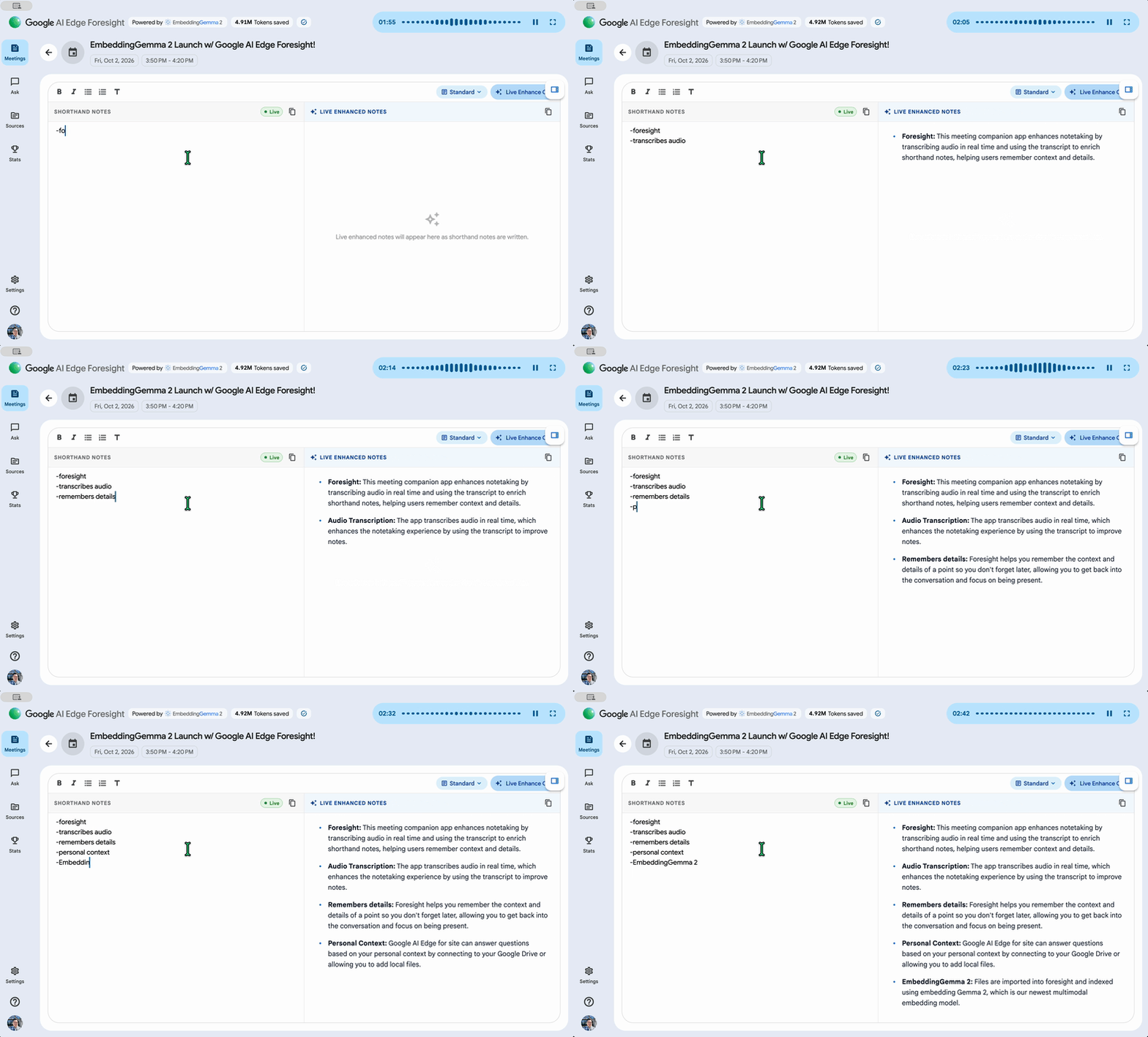
Google lanzó AI Edge Foresight, una app experimental para Mac que toma notas de reuniones con IA ejecutada por completo en el equipo. Funciona sin conexión, usa los modelos EmbeddingGemma 2 y Gemma 4 y no envía transcripciones a ningún servidor.
-

 Apps11 años ago
AMPcast, la herramienta de Pandora que permite a los artistas grabar mensajes de audio directamente a sus seguidores
-
 Blogs5 años ago
Conoce los mejores sitios de Torrents para descargar todo tipo de contenidos
-
Android5 años ago
Aprende cómo usar Discord para ver películas con tus amigos
-
Arte y Cultura14 años ago
Colección de fondos de pantalla basados en Super Héroes
-

 Almacenamiento2 años ago
Cómo usar TeraBox: La guía definitiva para aprovechar 1 TB de almacenamiento en la nube
-
Diseño13 años ago
css3ps: plugin que convierte archivos PSD a CSS3
-
Apps9 años ago
Picturethat, app que usa la Realidad Aumentada para visualizar cómo quedarían los cuadros antes de colgarlos
-
Eventos Especiales13 años ago
Especial Día de la Madres: fondos de pantalla especiales para Mamá